
Help
Tips for a good scan, and answers for when something goes wrong. The same help is in the app under Me.
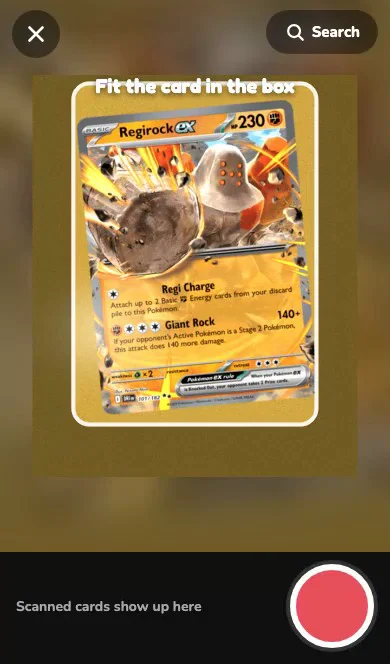
How to get a good scan
- The whole card, filling the boxOne card at a time, lying flat on a table. Get close enough that the card fills the frame.
- Bright light, no shineDaylight or a bright room. If you see a white glare on the card, tilt it a little, or take it out of a shiny sleeve.
- Hold stillRest your elbows on the table and wait a beat before you tap. Blurry photos are the main reason a scan misses.
- Still stuck? Snap the numberGet close to the bottom corner so the number and the small set letters are sharp. This works best on newer cards.
The scanner can make mistakes, so check each card on the "Check your cards" screen before you add it. If it's stuck, Search by name and number always works.
Scanning
It picked the wrong card
Nothing is added until you tap Add. On the "Check your cards" screen, tap "Not it?" to choose one of the look-alikes or search for the right card. Check the version too: normal, reverse holo or holo.
It can't find my card
Try again with the whole card in the frame, in bright light, holding still. If it still misses, get close to the number in the bottom corner. Or tap Search and type the name and number, like "Pikachu 25".
Can I scan just the number?
Yes, as a backup. A sharp close-up of the bottom corner, showing the number (like 045/084) and the small set letters beside it, often works on newer cards. Older cards often don't print set letters there, so a whole-card photo or Search works better for them.
Can it read Japanese cards?
Not yet. The scanner and search only know English-language cards for now.
My card is in a sleeve or a graded case
Shiny sleeves and plastic cases reflect light. Take the card out if you can, or tilt it until the white glare is gone.
A brand-new card isn't there
New sets and some promos take a little while to be added to the catalog. Try again in a few days, or search for it.
Can it scan a pile of cards at once?
One card per photo. You can snap several in a row, then add them all to the binder together.
Does it grade cards?
No. It finds the card and its market price; it doesn't judge condition.
Prices
Where do the prices come from?
TCGplayer market prices, updated every night. They're a guide, not an offer to buy or sell, and a card's condition changes what it's worth.
Why can't my kid see prices?
That's on purpose. Prices are off for kids to begin with. A parent can turn on "$ shown" for each kid in Me, then Collectors.
Family and sign-in
How do I add a kid?
A parent taps "+ Add a collector" on the Family tab, or opens Me, then Collectors. Each kid gets a picture and a 4-digit PIN. No email needed.
Someone forgot their PIN
A parent sets a new one in Me, then Collectors, then PIN.
We got a new phone or tablet
A parent signs in on it once with their email and password. After that, everyone taps their picture and enters their PIN.
Plans
How many scans do we get?
Free: 10 a day. Individual: 300 a day. Family: 600 a day, shared by up to 6 collectors. A Day Pass gives 600 scans for 24 hours.
How do I cancel?
A parent opens Me, then Plan & billing, then Manage billing. Your plan keeps working to the end of the period you paid for, then your family moves to Free and keeps every binder. See the refunds page for refunds.
Still stuck? Email [email protected].